Built for everyone.
The whole app now scales to your text size — on every device. Six accessibility dimensions, each with an in-app override. Keyboard Themes, an Aria voice orb, staff ghost fluid, and a cleaner Play dock.
Larger Text
The whole app, at your size.
Every mode — Learn, Play, Practice, Compose, Listen, Songs, and Aria — now respects your preferred text size. On iOS and iPadOS, use Settings → Accessibility → Larger Text. On Mac, ⌘+ / ⌘− or Settings → Text Size.
SwiftUI's built-in Dynamic Type hooks are silently ignored on macOS. Tiny Instrument 2.4 ships custom shims that read the same size value and apply it explicitly — so the Mac scales correctly alongside iPhone and iPad.
Accessibility deep dive →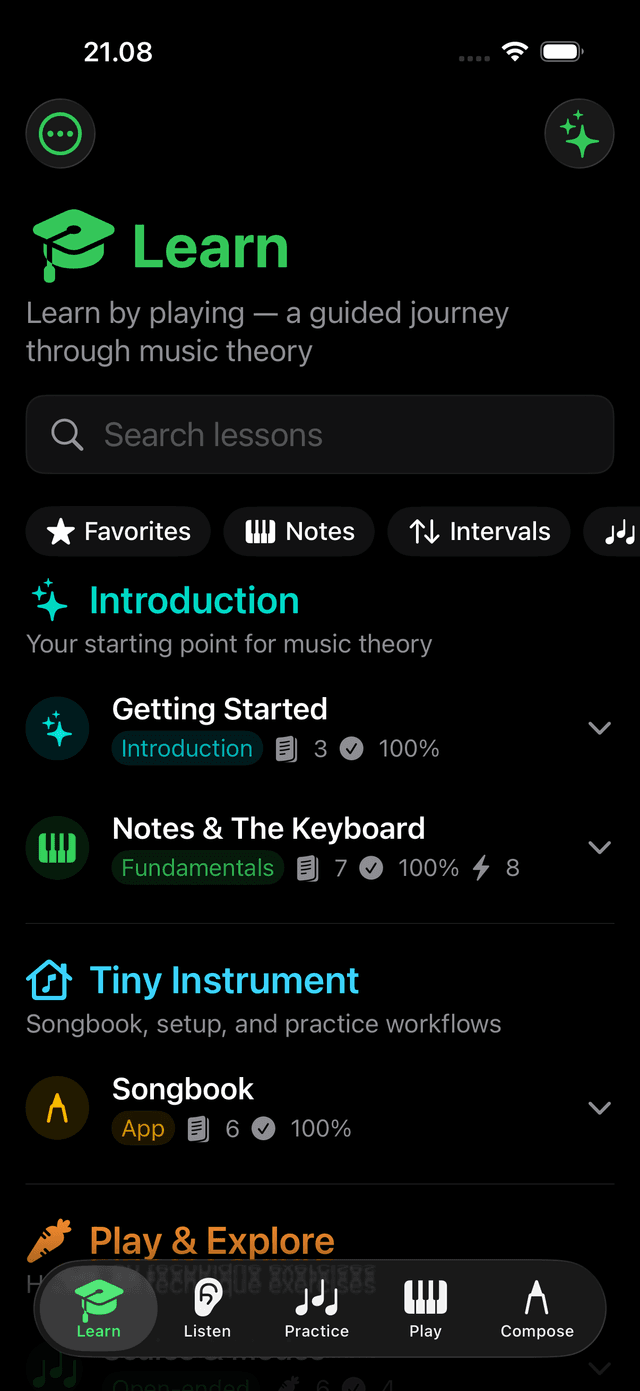
Accessibility settings
Six dimensions. System, On, or Off.
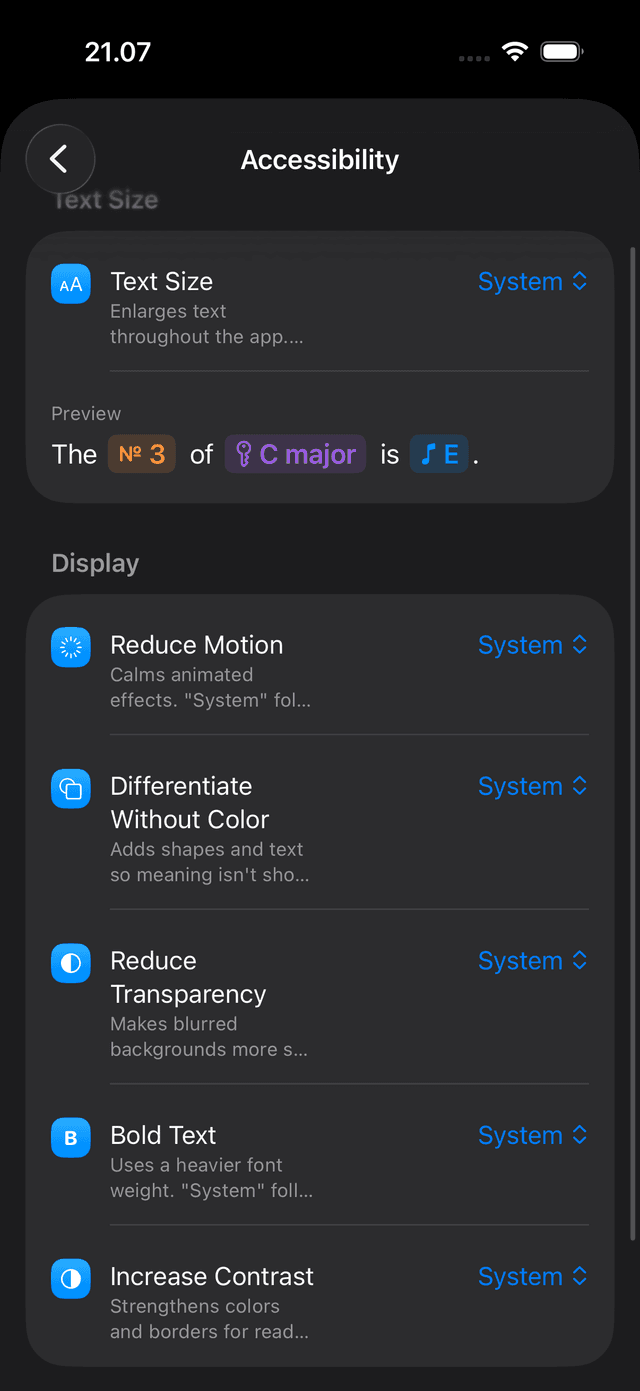
Settings → Accessibility now has a System / On / Off picker for each dimension: Reduce Motion, Differentiate Without Color, Reduce Transparency, Bold Text, Increase Contrast, and Text Size. System follows your OS setting — override any one without leaving the app.
Also new in Settings → Sound → Narration: a Narration Speed picker (Very Slow to Very Fast) with a preview button that speaks at the selected rate.
Keyboard Themes
12 finishes for your keyboard.
Classic and Midnight are always free. The $1.99 Keyboard Themes pack unlocks Space Gray, Starlight, Rose Gold, Pacific Blue, Alpine Green, Cosmic Orange, Blush, Citrus, Indigo, and Rainbow. Every detail follows the theme — shadows, highlights, fingering badges, and the degree strip all recolor.
Rainbow colors each pitch class with an Apple system color — so chord shapes and scale patterns read by color before your ear has them.
Keyboard Themes deep dive →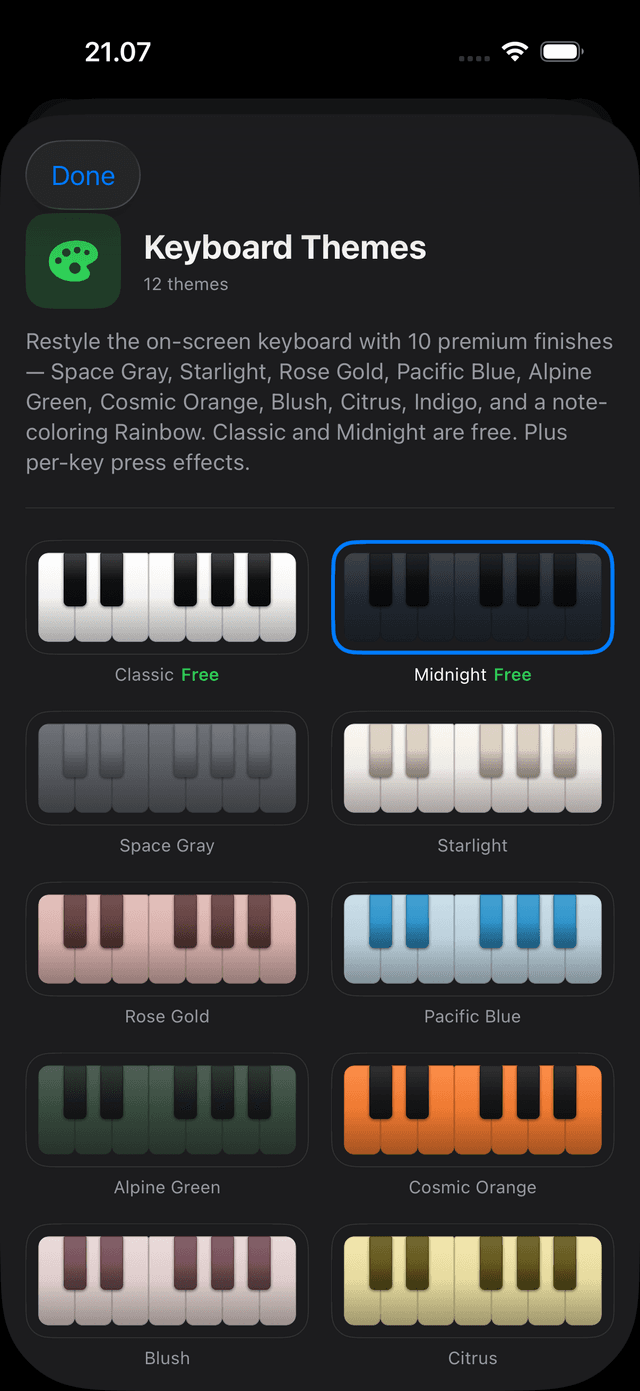
Keyboard Effects
Key press and border effects.
Key press effects
Four styles — Stardust, Sparkle, Splash, and Flash — fire on held and released keys. Each shows a soft glow while held, continuous particles, then a burst on release. Bundled in the Keyboard Themes pack.
Border effects
Five border styles animate around the keyboard — including Reactive Only, which ramps intensity with the number of notes held and their velocity. Free; off by default.
Aria voice orb
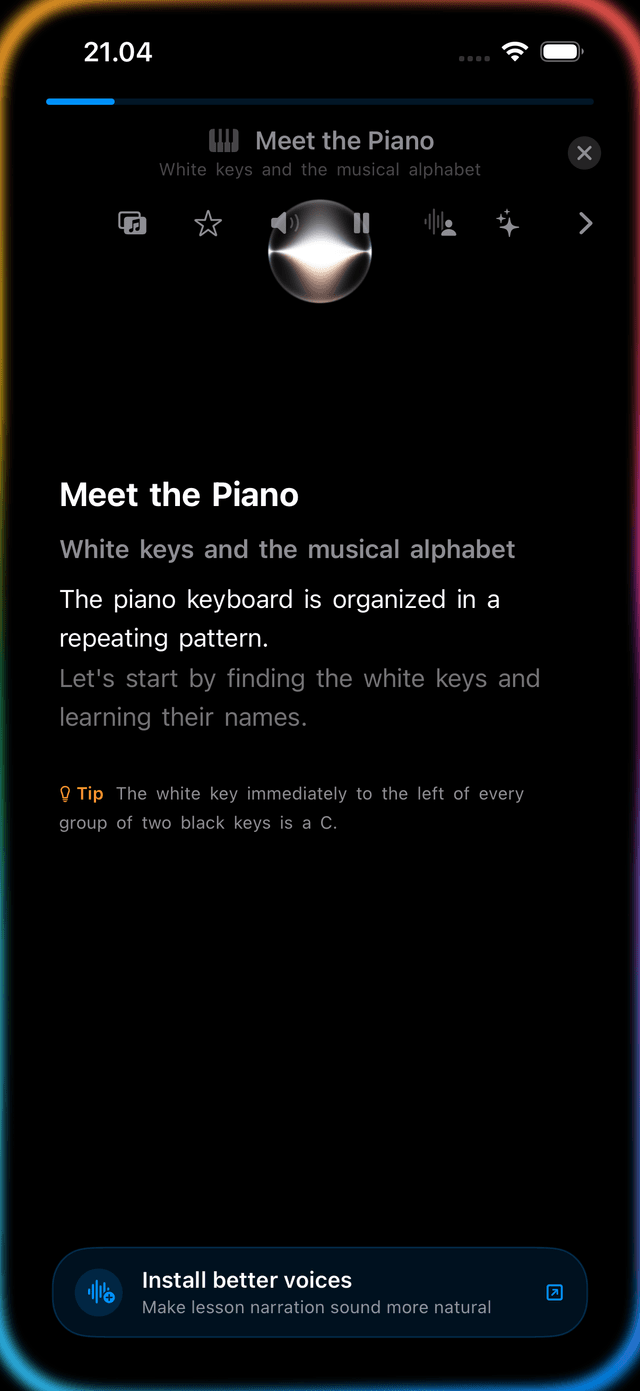
Aria speaks with presence.
A Siri-style orb appears while Aria narrates lessons and chat replies, modulated live by the real voice amplitude. The orb breathes with the speech — louder passages expand it, quieter ones contract it. Tap to interrupt. Reduce Motion shows a static disc.
Play staff
Ghost notes you can tap. Notes that dissolve.
Tap to play
Gray ghost preview notes on the Play grand staff are now interactive — tap or click one to hear it play. Right-click or long-press shows a context menu with the note's name.
Fluid dissipation
When you play a ghost note correctly, it turns green and then dissolves with an upward fluid wisp — a real-time Metal fluid simulation. Reduce Motion replaces the wisp with an instant fade.
Chapter unlock
A moment when you finish a chapter.
Completing the final lesson in a Core Theory chapter now triggers a slide-in celebration on iOS and iPadOS — a quiet moment to mark the achievement before returning to the lesson list. Reduce Motion uses a simple fade.
Play dock
Progression, Chord, and Chord Lab in one toggle.
Mode toggle
A three-segment pill replaces the old Progression and Chord Lab pills — switch between the diatonic strip, a single focused chord, and Chord Lab in one tap.
Sidebar mirror
Selecting a chord in the Play diatonic strip highlights the matching card in the Chords sidebar. Deselecting clears it.
Auto-play on select
A new toggle auditions a diatonic-strip chord the moment you tap it or arrow to it. Default on.
Also in 2.4
- The Five Modes — a new Learn chapter with one hands-on lesson per app mode (Learn, Listen, Practice, Play, Compose)
- Keyboard display options — note-name position (above keys or on key faces), highlight style (full-key or bottom strip), and octave-number position, in Settings → Piano Keys
- Staff note spelling follows the active key — noteheads sit on the correct line for sharps and flats in every key
- Unified Accidentals control — Automatic / Sharps / Flats now spells roots, keys, chord names, and the staff all at once
- Staff & Notation settings section — all staff display controls in one place (Show Staff, View, Note Names, Ledger Lines)
- Chord Lab panel and note labels follow the keyboard theme — pads retint, and resting/pressed note labels use contrasting theme colors
- Liquid Glass Play dock and active chord card on macOS 26 / iOS 26+
- Scale root octave reflected live on staff and keyboard in Play → Scales (macOS)
- ↑/↓ root and ←/→ octave shortcuts for Play → Scales (macOS)
- ⌘+ / ⌘− steps Text Size on macOS
- Reset Calibration button in Microphone Tuning settings
- Microphone Input moved to the top of MIDI Connections settings
- Fix: middle C now renders as a clean stemless notehead on the grand staff
- Fix: selecting a diatonic strip chord no longer hides the strip
- Fix: arrow-key chord and key shortcuts now work in standalone Chord mode on macOS
Tiny Instrument 2.4
Free to download.
Dynamic Type, accessibility overrides, and Keyboard Themes — free update. Unlock 10 premium keyboard finishes and key-press effects for $1.99.