Tiny Instrument · Accessibility
Designed to work for more people.
Tiny Instrument follows the accessibility settings you already rely on, and adds its own learning aids on top. Here's exactly how the app maps to Apple's App Store accessibility features today, and what we're building next. No overclaiming.
Get Tiny Instrument freeBuilt on your settings
It starts with the settings you already use.
Tiny Instrument inherits the appearance, motion, and text-size preferences you've set across iPhone, iPad, and Mac instead of overriding them. On top of that, the app adds its own controls for narration, keyboard guidance, and input, so you can shape music learning around the way you work best.
Apple accessibility features
Where we stand, feature by feature.
Apple lets apps declare support for a set of accessibility features. This is our honest status against the full list. Captions and Audio Descriptions are marked not applicable — the app has no video or audio-only media.
Dark Interface
Applies a dark color scheme to screens, menus, and controls to reduce eye strain.
Reduced Motion
Modifies or reduces animation that may cause motion sickness. Full coverage: Aria border, shimmer, ear-training waveform, toasts, and key effects all respond.
Larger Text
Scales text in every mode on iPhone, iPad, and Mac. macOS uses custom shims since SwiftUI's built-in hook is ignored there.
VoiceOver
Lessons are fully narrated by Aria — every step, hint, and explanation is spoken aloud. Systematic VoiceOver labeling for the keyboard, chord views, and navigation is in progress.
Voice Control
Navigate and interact with the app using your voice to tap, swipe, click, type, and more.
Differentiate Without Color
Unique icons for every inline music token — interval, chord quality, scale, and degree tokens are distinguishable by shape. Keyboard border cues coming next.
Sufficient Contrast
Increase Contrast has an in-app System / On / Off override — swapping lower-contrast fills for higher-contrast variants across text, tokens, and highlights.
Bold Text
Respects the system Bold Text setting (and an in-app override). Every font site bumps one weight step, capped at bold. Monospaced text excluded.
Dark Interface
SupportedDark mode, light mode, and visual tuning.
The app is built dark-first and fully supports light mode, following your system appearance automatically. The keyboard, the staff, and every lesson surface adapt cleanly, so nothing is left low-contrast or hard to read when you switch.
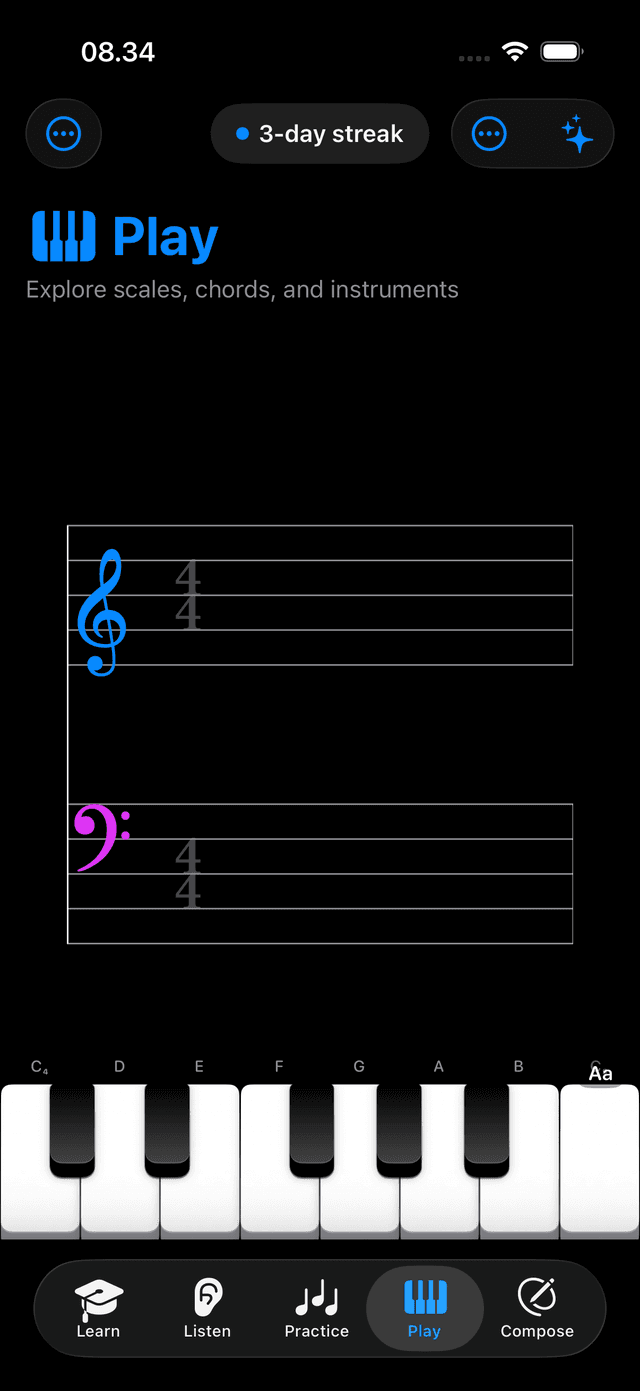
Dark
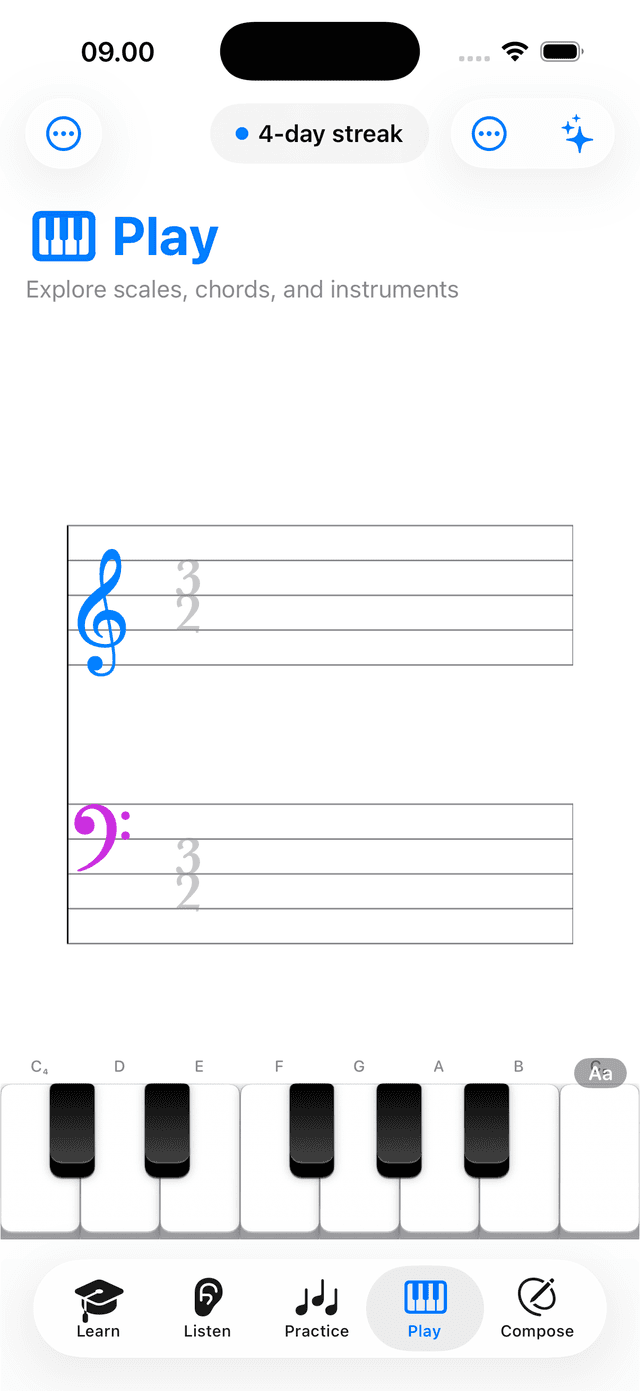
Light
Reduced Motion
SupportedCalmer when you need it.
Tiny Instrument honors the system Reduce Motion setting — and now offers an in-app override so you can turn it on or off without leaving the app. When on: Aria's border effect freezes to a static ring, the shimmer modifier goes static, the ear-training waveform stills, toasts use fade-only transitions, and key-press effects cap at a single flash. The staff ghost dissipation replaces its fluid wisp with an instant fade.
Larger Text
SupportedEvery mode, every screen, at your size.
Dynamic Type now scales the whole app — Learn, Play, Practice, Compose, Listen, Songs, and Aria. On iOS and iPadOS, use Settings → Accessibility → Larger Text. On Mac, use ⌘+ / ⌘− or Settings → Text Size.
SwiftUI's built-in Dynamic Type hooks are silently ignored on macOS. Tiny Instrument ships custom shims that read the same size value and apply it explicitly, so the Mac scales alongside iPhone and iPad. Per-area caps keep chrome readable and layouts intact at the largest sizes.
In-app overrides
SupportedSystem, On, or Off — per dimension.
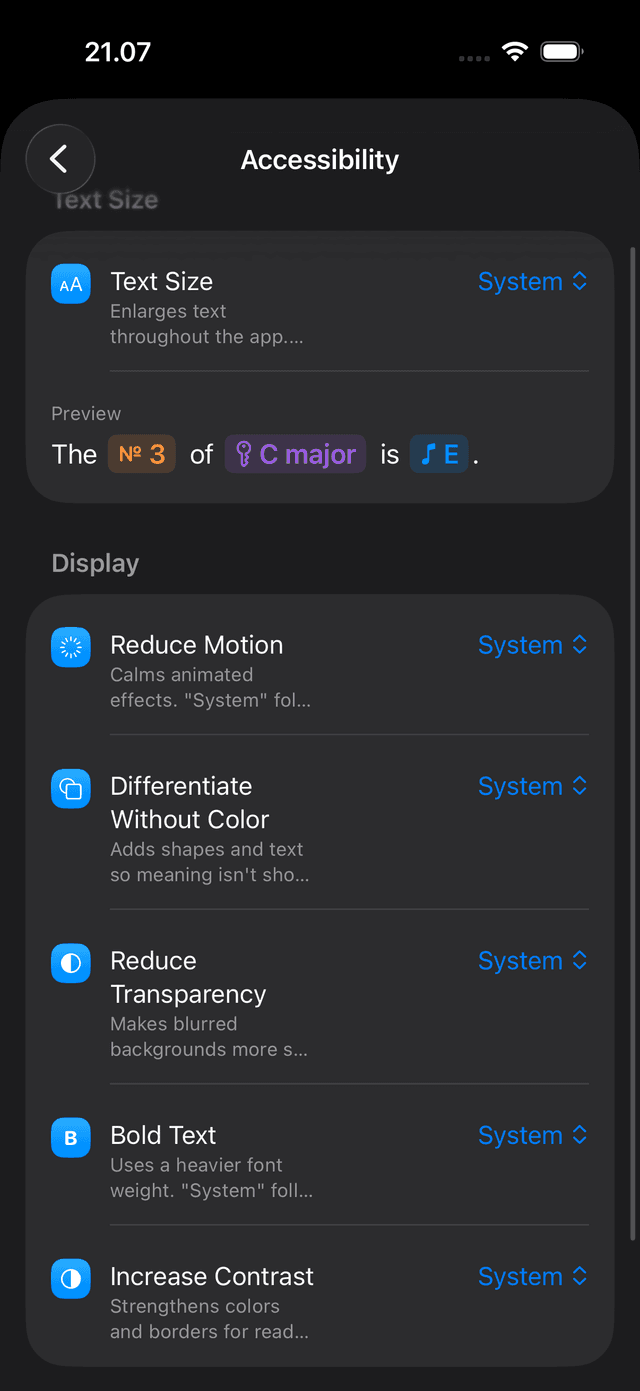
Settings → Accessibility now has a three-way picker for each dimension: System (follows your OS setting), On, and Off. Override any one without changing your system preferences. Six dimensions covered: Text Size, Reduce Motion, Differentiate Without Color, Reduce Transparency, Bold Text, and Increase Contrast.
Narration Speed
SupportedHear lessons at your pace.
Choose Very Slow, Slow, Normal, Fast, or Very Fast for all lesson and Aria narration. A Preview button in Settings → Sound → Narration speaks a sample at the selected rate so you can dial it in before a lesson starts.
Bold Text
SupportedHeavier when you need it.
Tiny Instrument respects the system Bold Text setting — and the new in-app override. Every text site bumps one font-weight step, capped at bold. Monospaced and tabular text is excluded so alignment stays intact.
Differentiate Without Color
PartialShape, not just color.
Every inline music token — interval, chord quality, scale, and degree — now has a unique icon shape. Tokens are distinguishable by shape alone, not only by color. Keyboard border cues and per-role highlight shapes are coming next.
On the way
Coming soonWhat we're building next.
These Apple accessibility features aren't supported yet. We'd rather say so than overclaim. Here's what each one needs and where we are.
Voice Control
Coming soonLands alongside the VoiceOver labeling work, so the app can be driven entirely by voice.
Also built in
Beyond Apple's standard features, Tiny Instrument includes its own learning aids that help more people get to the music.
Narration
Hear the lesson, not just read it.
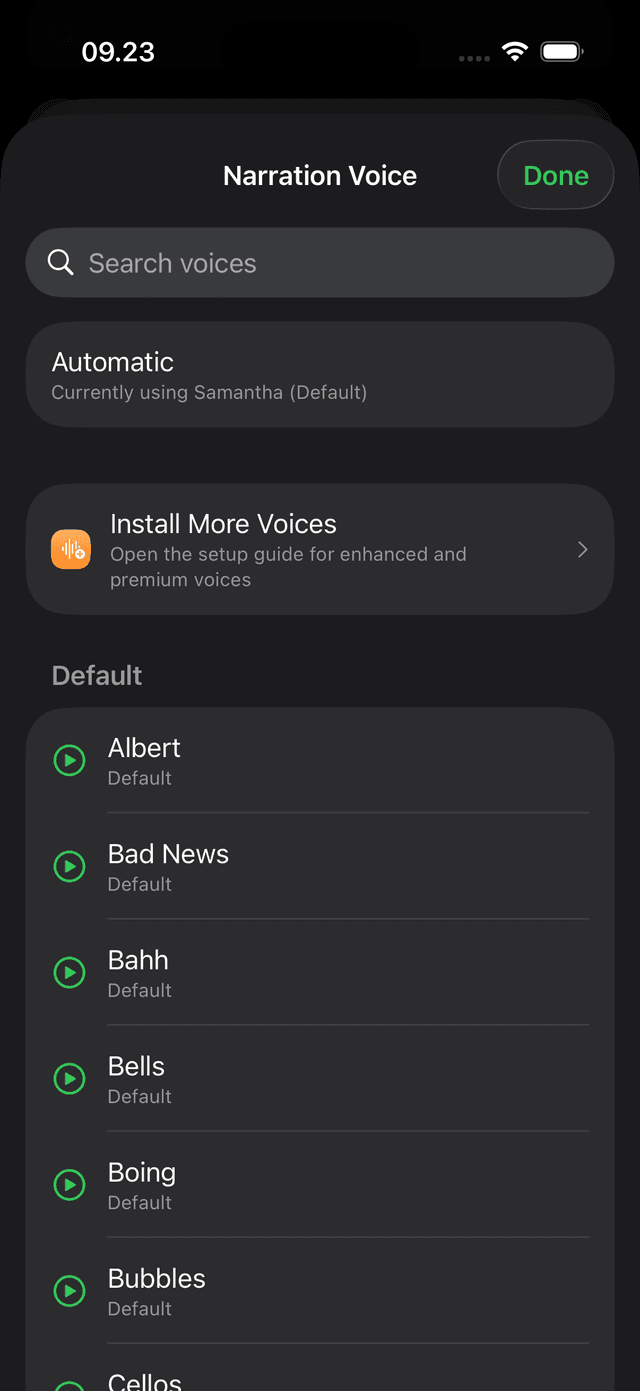
Lessons, Aria, and guided retry steps can read their content aloud, so the learning layer doesn't have to be purely visual. Choose the narration voice from the voices installed on your device.
Change the narration voice →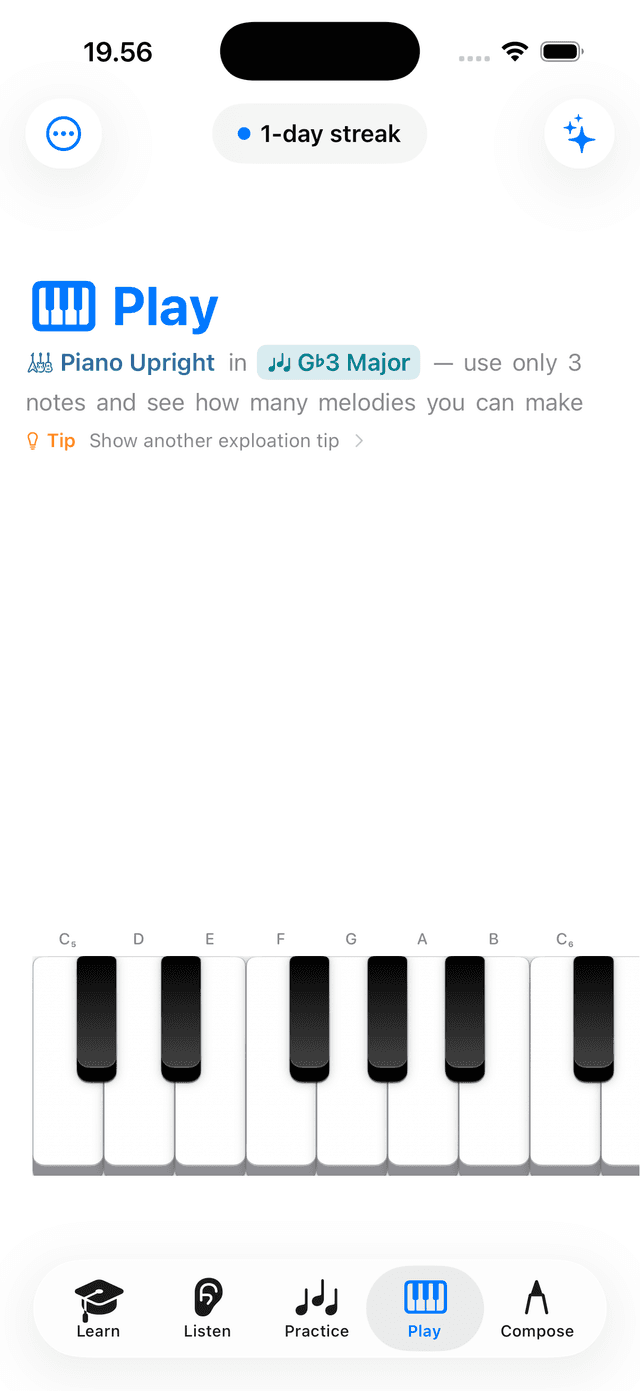
Visual anchors
Note labels and keyboard guides, always on.
Key names, note labels, and right-hand fingering guides can be shown on the keyboard at all times. For anyone who needs a visual anchor rather than relying on memory, the keyboard can always show what you're looking at and where your fingers go.
Set up fingering hints →Custom keyboard
Read the keyboard the way that works for you.
Put note names above the keys or right on the key faces, whichever your eye finds first. Choose how highlights read too: a full-key color wash, or a slim strip along the bottom edge for a quieter cue. Small choices, but they make the keyboard easier to scan.
You can also recolor the whole keyboard. Twelve finishes, from high-contrast Midnight to softer pastels, let you pick the look that stays legible and comfortable for you.
Explore keyboard themes →Screenshot needed
release-2-4-0-keyboard-display-options.pngKeyboard display settings — note-name position (above keys / on keys) and highlight style (full key / bottom strip).
Alternative input
Play the whole app from a physical keyboard.
A physical MIDI keyboard can replace touch entirely, across lessons, ear training, and practice. For anyone who finds touch surfaces difficult, or who simply prefers real keys, every mode is playable from hardware.
Learn music on your own terms.
Free to download on iPhone, iPad, and Mac.