Practice real songs.
Paste any chord chart and Tiny Instrument turns it into a live practice session — highlighted chords, karaoke-style lyrics, Roman numerals, and smarter MIDI controllers.
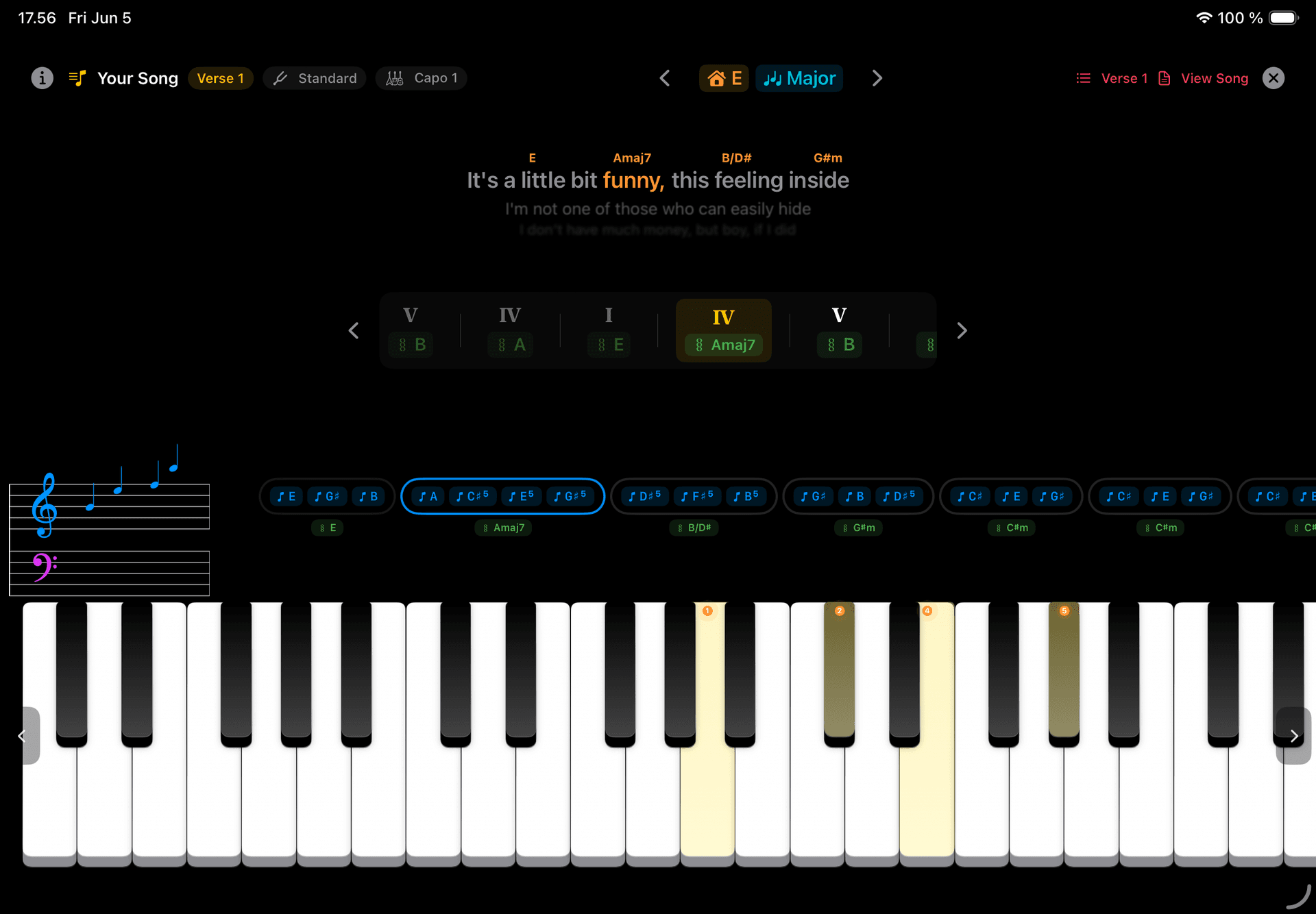
Song Mode
Any chord chart.
Instant session.
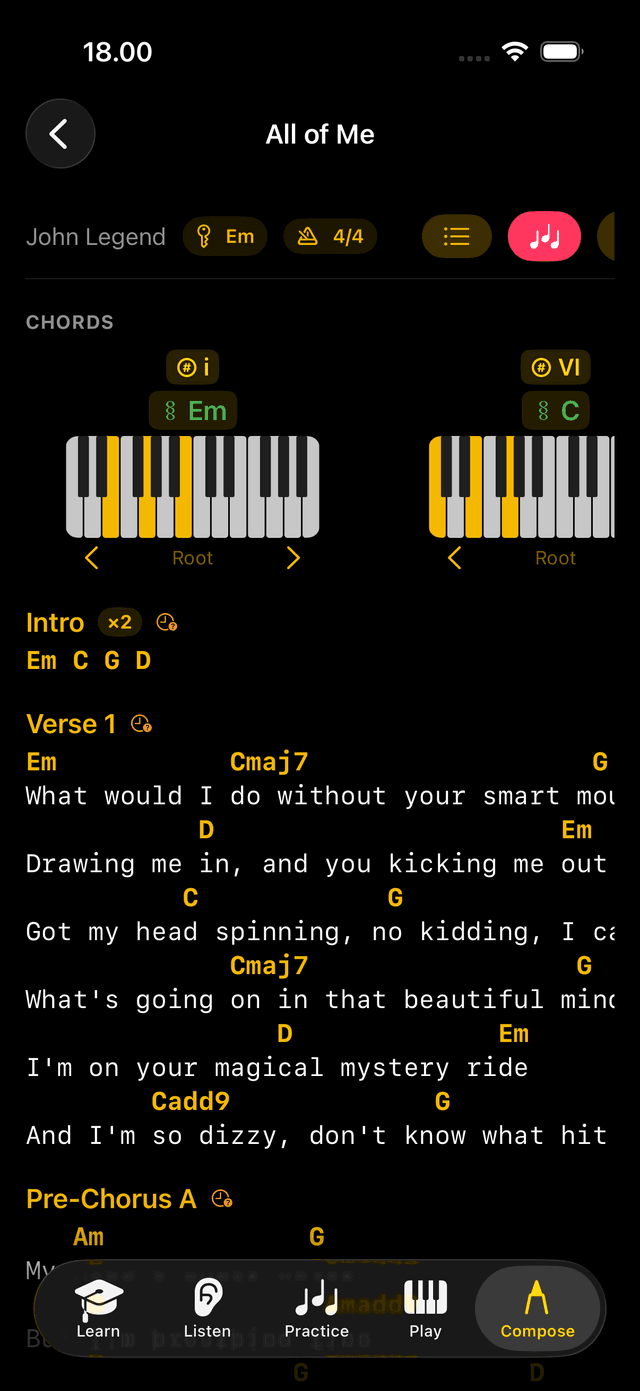
Paste a chord chart from any source — measure-based, chords over lyrics, any format — and Tiny Instrument parses it automatically. Verses, Choruses, and Bridges are detected and labelled. Any symbol it couldn't read is flagged before you start. Then play.
Automatic chart parsing
Paste any chord chart — measure-based, chords-over-lyrics, mixed. Verse, Chorus, and Bridge sections are auto-labelled. Unrecognised symbols are flagged for review before you play.
Chase the Notes
Race a moving highlight across the chord names. Loop any section until the shapes are in your fingers. The highlight waits if you miss, advances when you nail it.
Falling Notes
Alternative drill mode — chord notes fall toward the keyboard so you can connect chart reading with the physical layout.
Slash chord hand split
For slash chords with a seventh or extension (Am7/G, D7/F#), the bass note goes to your left hand and the chord to your right, with the on-screen keyboard guide tinted to match. Simple triad slashes stay a single shape.
Roman numeral analysis
Every chord shows its Roman numeral in the song's key — I, bVII, IV — so you can read the harmony as you play.
Per-chord inversions
Pin a specific inversion for any chord in the chart. The voicing carries through into practice so you always play the exact shape you intended.
Interactive chord tokens
Tap any chord in the chart to hear it play and see the notes on the keyboard — understand what you're practising before you drill it.
Jump to any section
A section bar above the chart puts every Verse, Chorus, and Bridge a tap away — no scrolling to find where you left off.
Transpose to any key
Change the key mid-session and Tiny Instrument asks whether to transpose all the chords. Practise in a different key for the session, or save the transposed version permanently.
Songbook
Your whole repertoire, in one place.
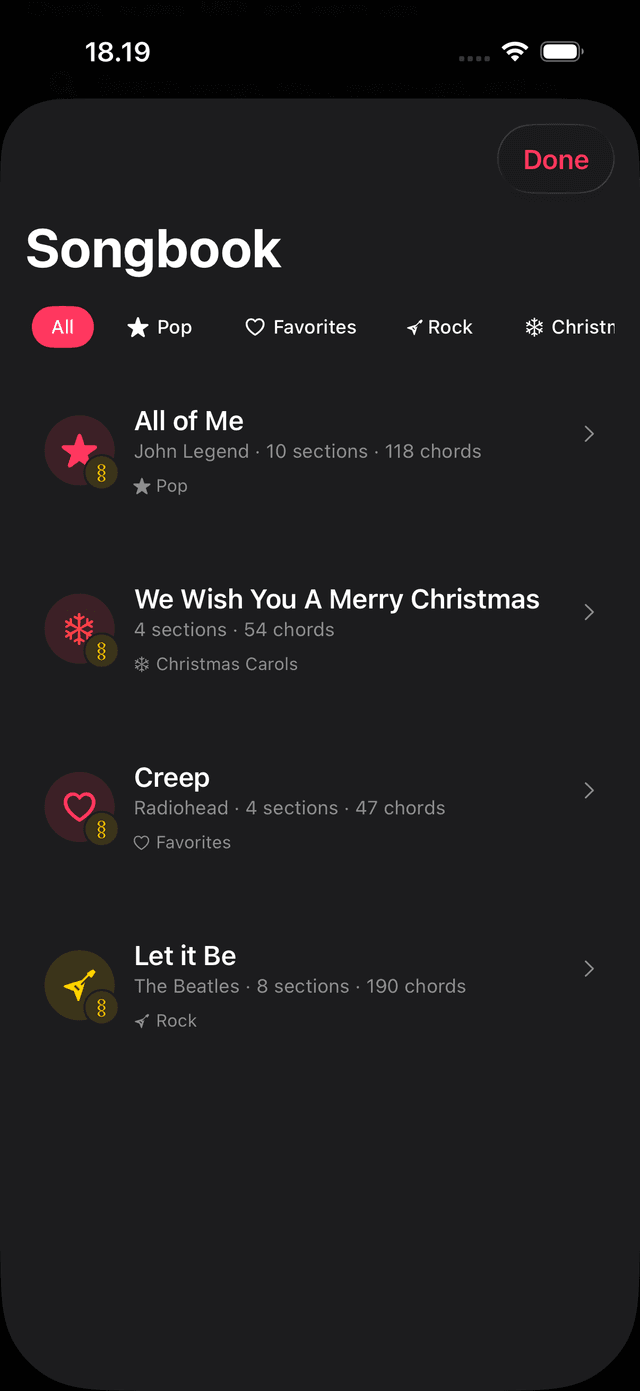
Every chart you import lives in the Songbook — searchable, filterable by category, and synced across iPhone, iPad, and Mac via iCloud. Build a chart from scratch, paste one in, or import straight from one of your Compositions — sections and chords carry over automatically as a starting point.
Guide: Import a chord chart →Lyric practice
Sing along as you play.
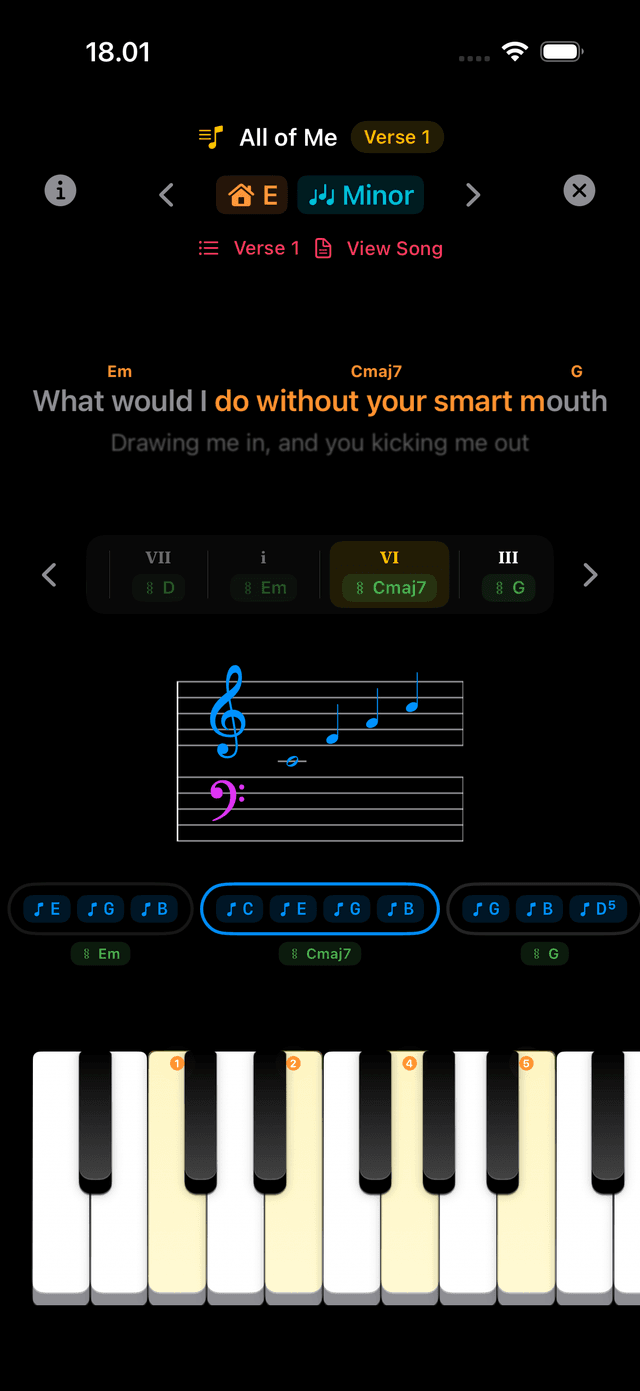
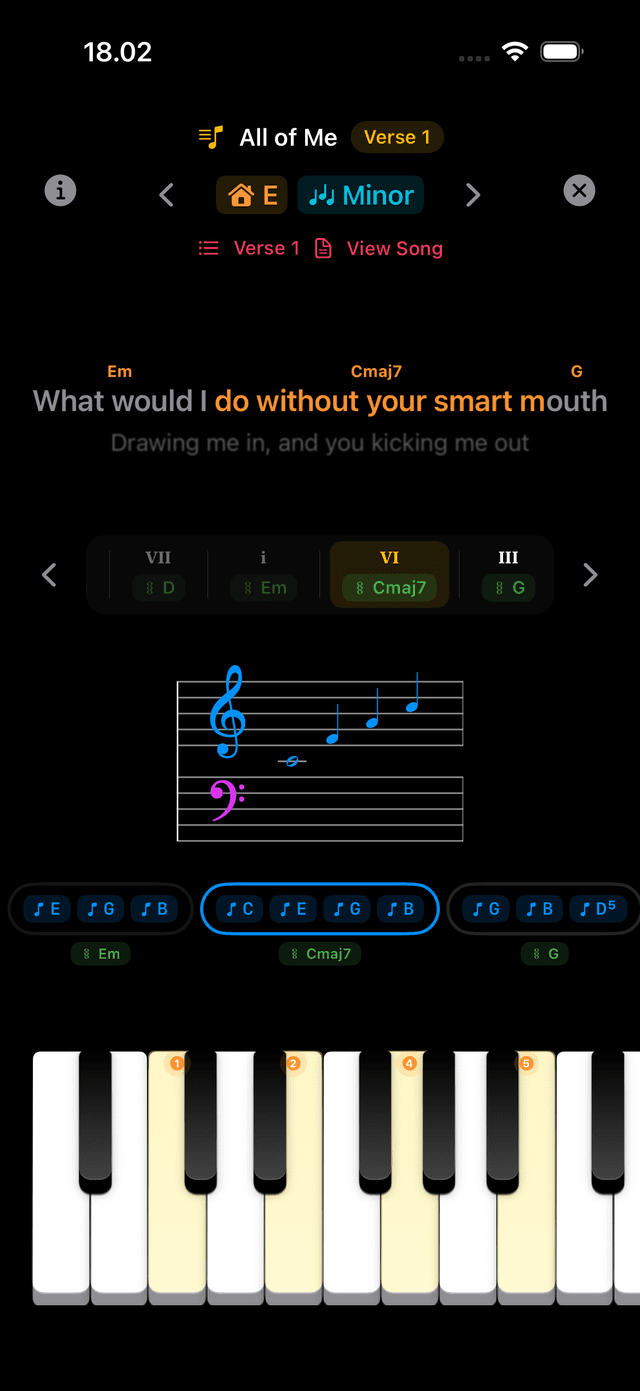
For songs that include lyrics, a karaoke-style overlay follows your practice in real time. The active lyric line sits center-screen with chord chips floating above it — previous and next lines fade out so the focus never leaves the current phrase.
Scrolling lines with depth fade
Lines scroll through center-screen as you advance. On iPhone, one line of context fades above and below; on iPad and Mac, two. The depth fade keeps focus on the current line without hiding what's coming.
Active word highlight
The word in the current lyric line that aligns with the chord you're playing is highlighted — so you can follow exactly where you are in the phrase as you play.
Chord chips above the line
The chords for the current lyric line float as chips above it — so you always know what you're about to play without looking back at the chart.
Tap any line to jump there
Tap a lyric line to jump practice directly to that line's first chord. On Mac, scroll the mouse wheel over the lyric block to step through lines one by one.
All lyric options are opt-in — toggle each one from the in-session Display panel (only shown when a song has lyrics) or in Settings → Practice.
Practice tools
Practice, deeper.
Every chord exercise in 2.1 gets a tempo-goal metronome, a choice of play mode, and a hand-split option — so practice feels less like drilling and more like playing.
BPM-goal metronome
Set a starting tempo and a target. The metronome steps up automatically each time you clear an exercise — always practising at the edge.
Play mode on every chord
Block, arpeggio, strum — choose how chords are voiced for Chase the Notes and Falling Notes, not just in freeplay.
Drone & chord-split hands
Set the left hand to a drone interval or a split so bass notes land in the left hand on any chord exercise.
Chord Progressions category
Chord Progressions is now its own category in Practice — open any saved progression directly into a drill session without going through Compose first.
MIDI
Controllers that speak your language.
MIDI CC messages now show by name instead of a bare number. Connect a recognised controller and Tiny Instrument shows its actual button names, identifies the controller, and offers to map its transport — with a manual override when the guess is off.
Named CC messages
CC messages read as "Sustain Pedal", "Mod Wheel", "Expression" instead of CC 64.
Controller profiles
Arturia KeyLab, Akai MPK, Roland A-series and others are auto-detected with named controls.
Transport mapping
Recognised controllers offer to map their transport buttons automatically — play, stop, record.
Manual override
If the auto-detected profile isn't right, you can override it and map controls yourself.
More in 2.1
Jump from Practice to Compose
Right-click or long-press any song or chord progression in Practice to open it in Compose for editing, or to rename, duplicate, or delete it — without leaving Practice.
Type badges on every item
Songs, melodies, MIDI files, warm-ups, and Easter eggs all carry a small type badge on their icon — so you can tell what each item is when browsing the full library.
Consistent lists across the app
Rows in the Compose sidebar, Practice, Melodies, MIDI Library, and Songbook now share one card style with a clearer selected state. The Practice sidebar on Mac highlights the active category.
Hide keyboard nav arrows
Settings → On Screen Keyboard → Show Navigation Arrows lets you hide the left/right octave-shift arrows for a cleaner look. Shift+Arrow on Mac and MIDI octave-shift still work.
MIDI practice library inline on Mac
Picking MIDI Practice now opens the MIDI library in the main pane — the same way Melodies and Songbook do — instead of a floating sheet.
Free-tier composition limit
Composition creation is now gated at 5 on the free tier, consistent with the Songbook limit. Unlock unlimited compositions with Composition Studio.
Tiny Instrument 2.1
Free to download.
Song Mode, Songbook, lyric practice, and MIDI improvements are free for everyone. Unlock additional theory chapters and practice tools with content packs.